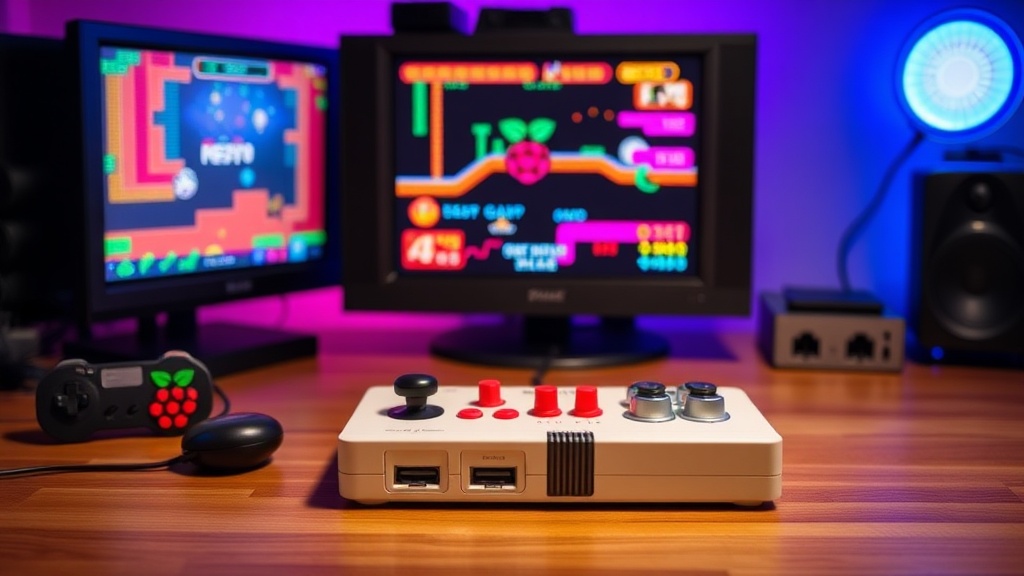
Set Up a Dedicated Retro Gaming Console with Raspberry Pi

The Hidden Cost of Retro Emulation
The average consumer spends over $150 on a single "plug-and-play" retro console from a big-box retailer, only to find the hardware is a rebranded, low-power SoC with limited emulation capabilities and proprietary, unchangeable software. This is a marketing trap designed to sell nostalgia through mediocrity. A Raspberry Pi, by contrast, offers a modular architecture that allows you to dictate the hardware-software synergy. This guide provides the technical roadmap to building a dedicated, high-performance retro gaming console that bypasses the limitations of consumer-grade "nostalgia boxes" by using high-speed microSD cards, optimized Linux distributions, and proper thermal management.
Building a dedicated machine ensures you aren't just running an app on a phone or a cluttered PC, but rather a dedicated single-board computer (SBC) optimized for low-latency input and consistent frame timings. We will focus on the Raspberry Pi 4 Model B or the Raspberry Pi 5, as these provide the necessary ARM Cortex-A76/A72 architecture to handle more demanding systems like the Dreamcast or N64 without the stuttering common in lower-tier hardware.
Required Hardware Inventory
Do not cut corners on the power supply or the storage media. Most "failed" Pi builds are actually victims of undervoltage or slow I/O speeds. To build a professional-grade unit, you need the following specific components:
- The Core: Raspberry Pi 5 (8GB RAM recommended for future-proofing) or Raspberry Pi 4 Model B (4GB is sufficient for most 16-bit and 32-bit emulation).
- Storage: A high-end MicroSD card with a minimum Class 10, U3, V30 rating. I recommend the SanDisk Extreme series. Cheap cards will cause "stutter" during asset loading in larger ROM sets.
- Power Supply: The official Raspberry Pi 27W USB-C Power Supply. Generic phone chargers often fail to provide the consistent amperage required during high-CPU emulation cycles, leading to system crashes.
- Cooling: An active cooling solution like the Argon ONE case or the official Raspberry Pi Active Cooler. Throttling is the enemy of consistent frame rates; without active cooling, the Pi will downclock itself during intensive N64 or PS1 emulation.
- Input: USB or Bluetooth controllers. For the lowest latency, use wired USB controllers (like the 8BitDo Pro 2) to avoid the jitter inherent in wireless protocols.
- Display: A monitor or TV with a low-latency "Game Mode" to minimize input lag.
Step 1: Selecting and Flashing the Operating System
You are not installing a standard desktop OS. You are installing a specialized distribution designed for gaming. The two industry standards are RetroPie and Recalbox. While RetroPie offers more granular control for advanced users who want to tweak configuration files via SSH, Recalbox offers a more streamlined, user-friendly interface that is "plug-and-play" once configured.
To begin, download the Raspberry Pi Imager from the official Raspberry Pi website onto your primary computer. Insert your high-speed MicroSD card into your PC. In the Imager tool, do not select "Raspberry Pi OS." Instead, navigate to "Other specific-purpose OS" > "Emulation and game consoles" and select your chosen distribution (e.g., RetroPie). This ensures the boot partition is correctly formatted for the specific kernel requirements of the emulation environment.
After selecting the OS, click "Write." This process will format the card and write the necessary partitions. Once complete, insert the card into your Raspberry Pi and connect it to your display and power source. The first boot may take several minutes as the system expands the filesystem to fit the capacity of your card.
Step 2: Optimizing the Hardware Environment
A common mistake is treating the Raspberry Pi like a standard computer. To achieve "console-grade" stability, you must address thermal and power constraints immediately. If you are using a standard case without ventilation, your emulation performance will degrade after 20 minutes of play as the SoC hits its thermal ceiling.
If you encounter "Under-voltage detected" warnings in the system logs, your power supply is insufficient. This is not a software bug; it is a hardware reality. Ensure you are using a dedicated power brick, not a USB port from a laptop or a cheap multi-port charging station. A stable voltage is critical for maintaining the high clock speeds required for 3D-era emulation.
For those looking to integrate this into a larger home setup, ensure your network environment is stable if you plan on using networked storage for your ROMs. If you are accessing files via a NAS or a local server, creating a zero-latency gaming network via wired Ethernet will prevent the stuttering and lag often seen with Wi-Fi-based file transfers.
Step 3: Managing ROMs and BIOS Files
The software is only half the battle. To play many systems—specifically PlayStation 1, Dreamcast, or Neo Geo—you need BIOS files. These are the system firmware files that tell the emulator how to interact with the virtual hardware. Without them, many games will simply hang at a black screen.
The process for adding games (ROMs) varies by OS, but generally follows this workflow:
- Enable SFTP/SMB: Most distributions allow you to access the file system over your local network. On a Windows machine, you can map the Pi's "roms" folder as a network drive.
- Categorize Folders: Inside the "roms" directory, you will see subfolders for each system (e.g., `snes`, `megadrive`, `psx`). Place your files in the corresponding folder.
- The BIOS Folder: This is the most critical step. BIOS files (like `scph5501.bin` for PS1) must be placed in the specific `bios` folder, not the individual system folder.
- Refresh the List: Once the files are transferred, restart the emulation software or use the "Update Games List" option in the main menu to populate your library.
Step 4: Advanced Configuration and Fine-Tuning
To move from a "hobbyist" build to a "professional" dedicated console, you must perform manual configuration tweaks. The most important setting is Input Lag Reduction. Even with a high-end monitor, the software-to-hardware pipeline can introduce delays.
Within the RetroPie or Recalbox settings, look for "Video Settings" or "RetroArch Configuration." You should aim to enable Run-Ahead if your hardware (like the Pi 5) can handle it. Run-ahead is a technique that recalculates frames to reduce input latency, making the controls feel significantly more responsive. However, be aware that this is CPU-intensive; if you see audio crackling, you have pushed the hardware too far and must disable it.
Additionally, if you are using a high-resolution display, you may need to adjust the aspect ratio. Many retro games were designed for a 4:3 aspect ratio. Forcing a 16:9 stretch looks unprofessional and distorts the gameplay. Use the "Core Options" in RetroArch to set the aspect ratio to 4:3 and use "Integer Scaling" to ensure the pixels remain sharp without blurring the image.
The Verdict: Is the Effort Worth It?
The consumer market wants you to buy a "black box" that promises everything and delivers a fraction of the performance. By building your own dedicated console with a Raspberry Pi, you are investing in a machine that is transparent, upgradeable, and significantly more powerful than any $150 "retro box" you will find on a retail shelf. You gain control over your hardware, your latency, and your longevity. While the initial setup requires more technical rigor, the result is a dedicated gaming appliance that actually performs as advertised.
Steps
- 1
Gather Your Hardware and SD Card
- 2
Flash the RetroPie Operating System
- 3
Configure Your Controller and USB Peripherals
- 4
Add Your Game ROMs to the System