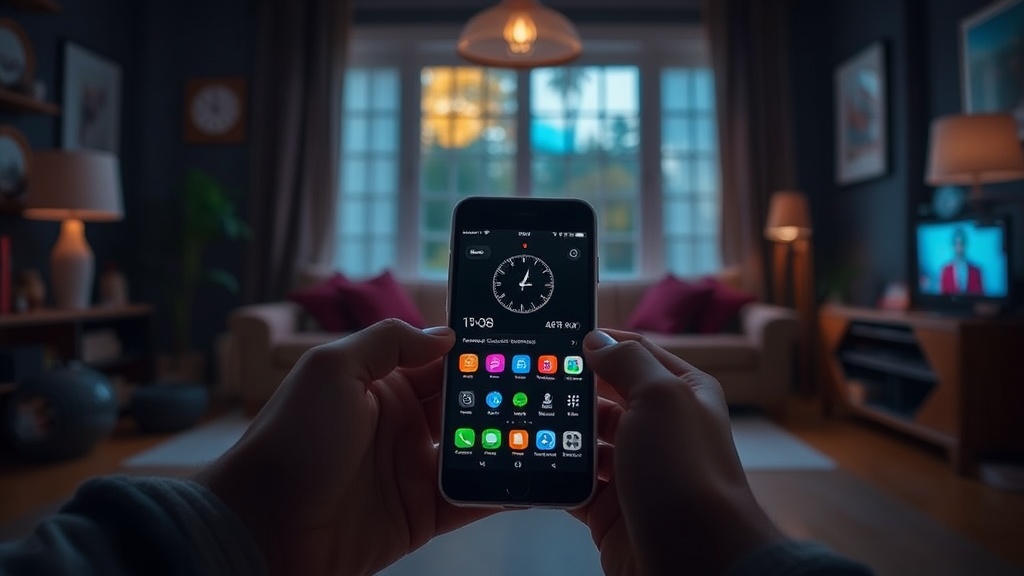
Reviving Your Old Smartphone: Transform It into a Dedicated Smart Home Controller

A dusty iPhone 8 sits in the back of a desk drawer, its screen slightly scuffed, its battery capacity hovering at a disappointing 82%. To most, this is electronic waste—a relic of a previous mobile era. But under the right configuration, that silicon and glass becomes a highly specialized, low-latency interface for a smart home ecosystem. Instead of letting it sit idle, you can strip away the bloatware and repurpose the hardware to act as a permanent, wall-mounted command center for your lights, thermostats, and security cameras.
The problem with modern smart homes is "app fatigue." You shouldn't have to unlock your primary phone, find the Philips Hue app, and navigate through menus just to dim the lights for a movie. A dedicated controller provides a persistent, tactile presence. This guide focuses on the engineering reality: how to optimize aging hardware to run a stable, single-purpose dashboard without the thermal throttling or battery swelling common in poorly managed repurposed devices.
Step 1: The Clean Slate – OS Optimization and Stripping
The biggest mistake in repurposing hardware is leaving the consumer-grade operating system intact. A standard Android or iOS installation is cluttered with background processes—Google Play Services, Facebook notifications, and telemetry—that consume CPU cycles and drain battery life. For a dedicated controller, you want a "lean" state.
If you are using an Android device, I recommend a factory reset followed by the installation of a lightweight launcher. Avoid heavy skins like Samsung’s One UI or Xiaomi’s MIUI. Instead, look for Nova Launcher or Niagara Launcher. These tools allow you to minimize the UI footprint and reduce the number of active processes. If you are feeling adventurous and have a device that supports it, flashing a custom ROM like LineageOS is the gold standard. LineageOS removes the proprietary bloatware and provides a much cleaner kernel, which is essential for long-term stability when the device is plugged into a power source 24/7.
For iOS users, your options are more restricted due to the walled garden. Your goal here is "Distraction Minimization." Go to Settings > Accessibility > Guided Access. This is a critical feature that allows you to lock the device into a single app, preventing accidental swipes or notifications from breaking your dashboard interface. It also allows you to disable specific areas of the screen, which is useful if a certain part of your UI is prone to ghost touches.
Step 2: Choosing Your Command Center Interface
A dedicated controller is only as good as its dashboard. You are not building a phone; you are building a specialized UI. You have three primary architectural paths depending on your technical proficiency and the existing hardware in your home.
The Home Assistant Dashboard (The Power User Route)
If you want professional-grade control, Home Assistant is the undisputed leader. It is an open-source platform that runs locally, meaning your data doesn't leave your house to go to a cloud server. To use your old phone as the interface, you will set up a Home Assistant instance on a Raspberry Pi or a dedicated NUC (Next Unit of Computing) in your server closet. You then access the Home Assistant dashboard via a web browser or the dedicated Android/iOS app on your repurposed phone.
The beauty of Home Assistant lies in its "Lovelace" UI. You can design custom cards for every device. Want a circular dial for your Nest Thermostat? A toggle switch for your Lutron dimmers? You can build it. This level of customization ensures that the interface is optimized for a single-purpose glance rather than a complex navigation menu.
The Google Home/Apple HomeKit Approach (The Low-Friction Route)
If you prefer not to manage a local server, you can use the native Google Home or Apple Home app. While these are more limited in terms of custom CSS or complex logic, they are incredibly stable. On an old Android phone, the Google Home app provides a clean, grid-based view of your devices. To make this a true "controller," you should use a "Kiosk Mode" app from the Play Store, which forces the app to stay in the foreground and prevents the screen from dimming.
The Specialized App Route (The Niche Approach)
For users with specific hardware, sometimes a single-purpose app is better. If you have a high-end Sonos system, the Sonos Controller app is far more responsive than a general smart home dashboard. If you use specialized lighting, the Lutron app provides a much more granular control over dimming curves than a generic integration would. In these cases, the "controller" becomes a single-app station.
Step 3: Power Management and Thermal Stability
This is where most DIY projects fail. A lithium-ion battery is not designed to be plugged into a wall outlet 24 hours a day, 365 days a year. Doing so leads to battery swelling (often called "pillowing"), which can crack the screen or even pose a fire hazard. As an engineer, I cannot stress this enough: do not just plug it into a cheap gas station charger and forget about it.
- Use a Smart Plug for Power Cycling: Instead of a continuous connection, plug your phone's charger into a smart plug. Set a routine in your smart home system to turn the plug off when the battery reaches 80% and back on when it hits 20%. This "cycling" significantly extends the lifespan of the battery cells.
- Avoid Cheap Wall Warts: Use a high-quality, regulated power supply. Cheap, unbranded chargers often have "dirty" power with high ripple voltage, which can degrade the internal charging IC of an aging smartphone over time.
- Thermal Monitoring: If you are mounting the device inside a recessed wall box or a tight cabinet, ensure there is airflow. If the device feels hot to the touch, it is too close to a heat source or lacks ventilation. Heat is the primary killer of both the battery and the processor's longevity.
Step 4: Physical Installation and Mounting
A controller is useless if it's sitting on a coffee table. It needs to be a fixed part of your home's architecture. To achieve a professional look, avoid the cheap plastic suction mounts or flimsy tripod stands. You want a mounting solution that looks intentional.
The Wall Mount: For a clean, permanent look, use a 3D-printed bracket or a dedicated magnetic mount. If you have an iPhone, a MagSafe-compatible wall mount is a seamless solution. For Android, look for brands like Vida360 or specialized mounting plates found on Etsy that allow you to screw the device directly into a wall plate. This gives the device the appearance of a built-in smart panel rather than a discarded gadget.
The Desk/Countertop Stand: If the device is meant to sit on a kitchen counter to control music and timers, use an aluminum stand with a weighted base. This prevents the device from sliding when you tap the screen. Ensure the charging cable is routed through a cable management sleeve or tucked behind the stand to maintain a minimalist aesthetic. The Rise of Minimalist Desk Setups emphasizes that clutter is the enemy of productivity; a messy tangle of wires will ruin the utility of your new controller.
Step 5: Automation and Advanced Logic
To truly transform the device, you must move beyond manual tapping. A great smart home controller reacts to the environment. If you have integrated your phone with a system like Home Assistant, you can use the device's remaining sensors to trigger automations.
The Ambient Light Sensor: Use the phone's light sensor to adjust the dashboard brightness. At 11:00 PM, the screen should dim significantly or switch to a "Dark Mode" interface to avoid glaring in a dark room. The Proximity Sensor: You can set the screen to turn on only when someone approaches the device. This saves power and prevents the screen from being "on" unnecessarily during the day.
Voice Integration: Even though the phone is a visual controller, it should still act as a localized voice gateway. If you have a high-quality microphone on the device, you can use it to process local voice commands. This is a step up from mastering your smart home with local voice control, as it provides a dedicated physical point for the system to "listen" without relying on a distant smart speaker.
The Verdict
Repurposing an old smartphone is not just a way to reduce e-waste; it is an engineering challenge that results in a superior user experience. By stripping the OS, implementing a local-first dashboard like Home Assistant, and strictly managing the thermal and power constraints, you create a tool that is more reliable and more specialized than any consumer-grade smart display. Don't let your old hardware die in a drawer—give it a dedicated, high-utility purpose.
Steps
- 1
Factory Reset and Minimal App Installation
- 2
Configure Dedicated Smart Home Dashboard App
- 3
Set Up Permanent Power and Mounting
- 4
Enable Kiosk Mode for Constant Display