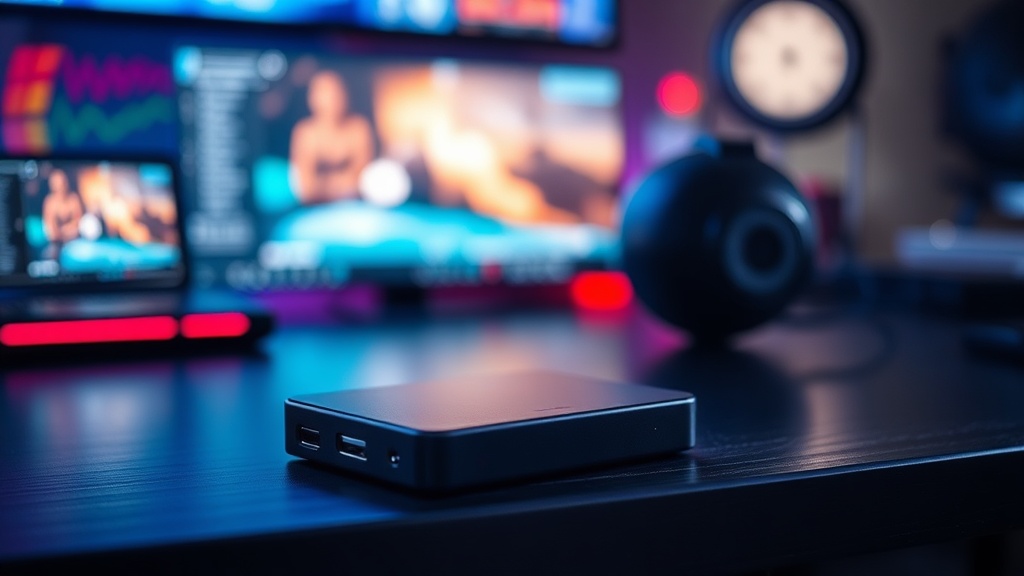
Why You Should Use a Dedicated External SSD for Your Video Editing

Are you tired of your video editing software stuttering during playback, or seeing that dreaded "disk overload" warning just as you're trying to scrub through a 4K timeline? Most editors attempt to manage their high-bitrate footage directly from their laptop's internal drive or a generic USB flash drive, assuming that "SSD" is a universal guarantee of speed. This post explains why relying on internal storage or cheap portable drives is a bottleneck for your workflow and why investing in a dedicated, high-performance external SSD is a technical necessity for professional-grade editing.
The Myth of Universal SSD Speed
The marketing for Solid State Drives (SSDs) often focuses on a single, impressive number: the peak sequential read/write speed. However, as someone who has spent years analyzing controller performance and NAND flash degradation, I can tell you that peak speed is a deceptive metric. Most consumer-grade portable SSDs are designed for occasional file transfers, not the sustained, heavy-duty I/O (Input/Output) required by video editing software like Adobe Premiere Pro, DaVinci Resolve, or Final Cut Pro.
When you edit video, your computer isn't just reading one file. It is simultaneously reading multiple streams of high-bitrate data (video, audio, and metadata) while writing temporary cache files and render files back to the disk. This creates a massive demand for both sequential throughput and random access speeds. A cheap drive might boast 500MB/s, but once the SLC cache is exhausted during a heavy render, those speeds can plummet to 30MB/s—slower than a mechanical hard drive. This is where your timeline begins to lag.
Understanding Throughput vs. IOPS
To understand why your current setup is failing, you need to look at two different metrics:
- Sequential Throughput: This is the speed at which a single large file is moved. This is what manufacturers advertise. It matters when you are moving a 50GB clip from a camera card to your drive.
- IOPS (Input/Output Operations Per Second): This is the ability to handle many small, simultaneous requests. This is what actually matters when you are scrubbing through a timeline or working with multi-cam sequences.
A dedicated external SSD designed for professional workloads utilizes a more robust controller that can handle high IOPS without thermal throttling. If you are using a standard "thumb drive" style SSD, you will notice that as soon as the drive gets warm, the controller throttles the speed to prevent hardware damage, effectively killing your editing momentum.
Why Internal Drives Are Not the Answer
It is a common mistake to assume that because your MacBook Pro or high-end Windows laptop has a fast NVMe drive, you should keep all your project files there. While internal drives are incredibly fast, using them as your primary workspace for large-scale video projects is a tactical error for three specific reasons:
- OS and Software Contention: Your operating system (macOS or Windows) and your editing software are constantly performing background tasks—indexing, updating, and managing swap files. When you store your footage on the same drive as your OS, your video playback is competing for bandwidth with the system itself. This leads to dropped frames and micro-stutters.
- Storage Exhaustion and Performance Degradation: SSDs perform best when they have significant "breathing room." As an internal drive fills up with OS updates, applications, and system files, the controller has fewer free blocks to manage wear leveling and garbage collection. This leads to a significant drop in write speeds.
- Lack of Portability and Redundancy: If your internal drive fails, your project and your OS are gone. By working off an external drive, you create a natural separation between your workstation and your data. If your laptop crashes, your footage remains safe on the external unit.
The Hardware Requirements for a Professional Workflow
If you are going to buy an external SSD specifically for video editing, do not look at the capacity first. Look at the interface and the thermal management. A drive with 4TB of storage is useless if it cannot maintain its speed under load.
1. The Interface: USB 3.2 Gen 2 vs. Thunderbolt 3/4
This is where most people waste money. You might see a drive labeled "USB 3.2" and assume it's fast enough. However, the connection type dictates your ceiling. For 4K or 8K editing, you should aim for a Thunderbolt 3 or Thunderbolt 4 interface. While USB 3.2 Gen 2 (10Gbps) is sufficient for basic 4K 10-bit footage, Thunderbolt (40Gbps) provides the massive bandwidth necessary for uncompressed video and multi-cam editing without the latency issues found in standard USB protocols.
2. Thermal Management and Heat Sinking
High-speed data transfer generates heat. I have seen countless "portable" SSDs fail during a 30-minute render because they lacked adequate heat dissipation. When the NAND flash chips overheat, the controller throttles the speed to protect the hardware. When shopping, look for drives with aluminum enclosures or those specifically marketed for "sustained workloads." If the drive feels hot to the touch during a transfer, it is likely throttling.
3. NVMe vs. SATA-based External Drives
Avoid any external SSD that is essentially a SATA drive in a fancy box. SATA-based external drives are capped at roughly 550MB/s. For modern video editing, you need an NVMe-based external drive. An NVMe drive can leverage the higher speeds of the PCIe bus, allowing for much higher throughput that can actually keep up with high-bitrate codecs like ProRes or REDCODE RAW.
Recommended Setup Configurations
To build a reliable editing ecosystem, I suggest a tiered approach to your storage. Do not rely on a single device for everything. Instead, use a specialized drive for each stage of the process:
- The Scratch/Media Drive (The Dedicated External SSD): This is your high-performance NVMe/Thunderbolt drive. This is where your active project files, footage, and render cache live. This drive stays plugged into your computer throughout the entire edit.
- The Archive Drive (High-Capacity HDD or Cold Storage): Once a project is finished, move it to a high-capacity mechanical hard drive or a private cloud storage system. These drives are slower and not suitable for active editing, but they are cost-effective for long-term storage.
- The Backup (Redundant System): Never trust a single drive. Always follow the 3-2-1 rule: three copies of your data, on two different media types, with one copy off-site.
The Verdict: Is It Worth the Investment?
The cost of a high-end, Thunderbolt-capable NVMe SSD can be significant—often double or triple the price of a standard portable SSD. However, you must calculate the cost of your time. If you spend 15 minutes every day waiting for files to transfer, or if you lose an hour of productivity every week due to software lag and system crashes, the "cheaper" option is actually more expensive in the long run.
A dedicated external SSD is not a luxury; it is a specialized tool. Just as you wouldn't use a screwdriver to hammer a nail, you shouldn't use a consumer-grade USB flash drive to drive a professional video workflow. If you want predictable performance, sustained write speeds, and a smooth timeline experience, move your media to a dedicated, high-bandwidth external drive. Your sanity—and your deadline—will thank you.