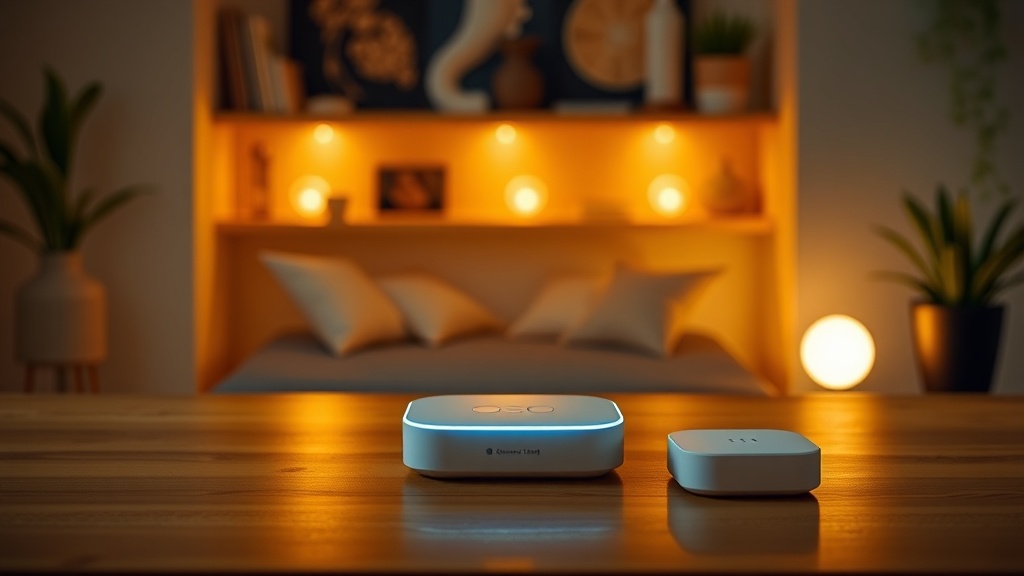
How to Set Up Your First Smart Home Hub in 30 Minutes

This post walks through selecting, unboxing, and configuring a smart home hub from zero to functional in half an hour. Most people overcomplicate this. They buy incompatible gear, fight with Wi-Fi passwords, and give up before the coffee gets cold. You'll avoid those traps. By the end, you'll have a working hub controlling lights, locks, or sensors — and you'll know which "smart" devices are actually worth the silicon inside them.
What exactly does a smart home hub do?
A smart home hub is a central translator. It lets devices speaking different wireless languages — Zigbee, Z-Wave, Thread, Matter — talk to each other and to your phone. Without one, you're stuck with a dozen separate apps and devices that refuse to cooperate.
Here's the thing. Many "smart" gadgets connect directly to Wi-Fi. So why bother with a hub? Two reasons. First, Wi-Fi bulbs and switches clog your network — each one hogs an IP address and creates traffic. A hub moves that chatter onto more efficient protocols. Second, local control. When your internet hiccups (and it will), a proper hub keeps your automations running. The lights still turn on at sunset. The door still locks at bedtime.
Not all hubs are created equal. Some are locked gardens — looking at you, Apple HomePod — while others play nice with everything. The hardware QA engineer in this writer despises proprietary nonsense. Your hub should outlast the company that made it.
Which smart home hub should you buy in 2025?
The safest picks right now are the Samsung SmartThings Station ($60), the Aeotec Smart Home Hub ($135), or the Home Assistant Green ($100) if you're technically inclined. Each supports Matter, Thread, Zigbee, and Z-Wave — the protocols that actually matter.
| Hub | Price | Protocols | Local Control | Best For |
|---|---|---|---|---|
| Samsung SmartThings Station | $59.99 | Matter, Thread, Zigbee, Z-Wave (via USB) | Partial | iPhone users, beginners |
| Aeotec Smart Home Hub | $134.99 | Zigbee, Z-Wave | Yes (with Edge drivers) | Reliability obsessives |
| Home Assistant Green | $99.99 | Everything (via add-ons) | Complete | Tinkerers, privacy-focused |
| Amazon Echo (4th Gen) | $49.99 | Zigbee, Matter, Thread | No | Voice-first users |
The catch? Amazon's Echo is cheap for a reason. It demands internet for everything. Samsung's hub phones home more than it should. Home Assistant gives you total control — but you'll edit YAML files at 2 AM eventually. There's no perfect option. Only trade-offs you can live with.
That said, this guide assumes the Samsung SmartThings Station. It's widely available, supports wireless charging for your phone (nice touch), and handles the basics without drama. The steps apply broadly to other hubs — just expect different menu names.
How do you set up a smart home hub step by step?
Plug the hub into power and ethernet, download the SmartThings app, create an account, and follow the pairing prompts. The whole process takes 8-12 minutes if your network cooperates.
Step 1: Position the hub correctly
Central location matters. These radios aren't magic — walls, refrigerators, and fish tanks murder signals. Place the hub on the main living floor, away from metal objects, at least three feet from your Wi-Fi router. (Interference is real. This isn't audiophile snake oil.)
Step 2: Wire it in
Use ethernet. Wi-Fi on your hub is a backup at best — it adds latency and another point of failure. The SmartThings Station includes a cable. Use it. Wait for the status light to pulse blue (ready) not red (angry).
Step 3: Download and authenticate
Grab the SmartThings app from Google Play or the App Store. Create a Samsung account — yes, another account, sorry — and sign in. The app will find your hub automatically if you're on the same network.
Step 4: Add your first device
Start simple. A Philips Hue bulb or an Aeotec door sensor. Tap the "+" in the app, select "Add device," and follow the pairing ritual. Zigbee devices usually require holding a button until they blink. Z-Wave devices need exclusion first (a security feature that's mostly annoying).
Worth noting. The first device always takes longest. The hub builds its mesh network starting from that single point. Be patient. If pairing fails three times, factory-reset the device and try again. Cheap sensors from Amazon often arrive half-paired to test benches in Shenzhen.
Step 5: Create a basic automation
Don't stop at remote control. That's not "smart" — that's a glorified remote. Build one automation: "When motion detected in hallway, turn on light for 5 minutes." Test it. Walk around. Does it trigger consistently? Does it respect the timeout?
Most people skip testing. Then they wonder why their lights flicker at 3 AM or stay on all day. The automation editor in SmartThings is visual — drag, drop, tweak. But the logic underneath is binary and unforgiving. One missing condition and your "smart" home becomes a haunted house.
Step 6: Document everything
Seriously. Screenshot your device list. Save the model numbers. Write down which room each sensor lives in. Six months from now, when a device drops offline (and it will), you'll thank yourself. The SmartThings app shows device health, but it's often wrong. A "green" status means the hub heard from it recently — not that it works reliably.
What engineering shortcuts should you watch for?
Manufacturers cut corners everywhere. Cheap Zigbee bulbs use weak radios that drop off the mesh. Cloud-dependent hubs (most of them) turn into paperweights during outages. And those "universal" Matter devices? Many only support Matter-over-Wi-Fi, defeating the purpose of local control.
The marketing lies are thicker than ever. "Works with Alexa" means nothing — that's just a cloud skill. "Matter certified" doesn't guarantee Thread support. "Local processing" often means "local sometimes, cloud when we feel like it." Read the spec sheets. Boring, yes. But this writer has torn down enough $200 hubs to know — the pretty exterior hides $12 worth of components and a permanent connection to someone's server farm.
Avoid Wi-Fi cameras and doorbells on battery power. They wake slowly, miss events, and drain fast. Hardwired PoE (Power over Ethernet) is the engineering solution — but good luck finding that at Best Buy. The Home Assistant community maintains lists of devices that work locally and keep working when the internet dies. Bookmark that. Reference it before every purchase.
Your smart home should serve you — not Samsung, not Amazon, not some startup that'll get acquired and sunset their cloud service next Tuesday. Build it right the first time. Test like you mean it. And remember: the best automation is the one you never think about because it just works, even when everything else doesn't.
Steps
- 1
Choose the right smart home hub for your ecosystem
- 2
Connect and power up your hub
- 3
Add and configure your first smart devices