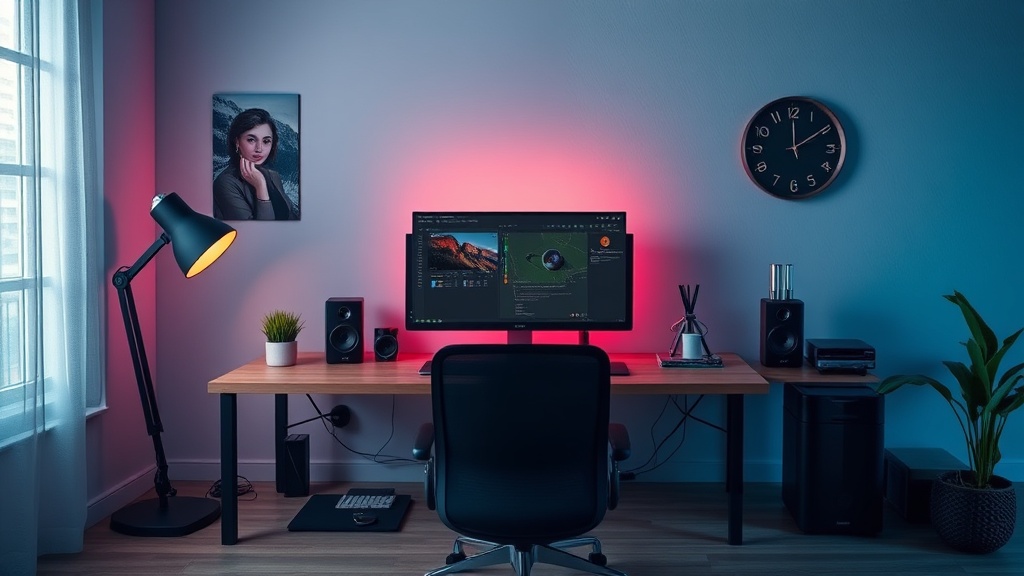
How to Build a Minimalist Desk Setup for Better Focus

A tangled web of USB-C cables, a flickering RGB strip, and three different wireless dongles cluttering your mousepad are not just aesthetic issues; they are cognitive drains. When your physical environment is cluttered, your brain spends unnecessary cycles processing peripheral stimuli, which directly impacts your deep work capacity. This guide outlines a systematic approach to building a minimalist desk setup designed for high-performance computing and mental clarity. We will focus on hardware selection, cable management engineering, and the elimination of redundant peripherals to ensure your workspace serves your productivity rather than distracting from it.
The Foundation: Desk Surface and Ergonomic Integrity
The most common mistake in setup building is prioritizing aesthetics over structural stability. A wobbly desk is a constant, low-level irritant that disrupts concentration. If you are looking for a permanent solution, avoid lightweight consumer-grade desks that flex under the weight of multiple monitors. Instead, look for a solid core or a heavy-duty steel frame. A standing desk like the Fully Jarvis or a high-quality IKEA Idåsen provides the necessary rigidity for a stable typing experience.
Once the foundation is set, the surface material matters. A high-quality desk mat serves two purposes: it provides a consistent friction coefficient for your mouse and dampens the acoustic vibrations of your mechanical keyboard. If you have ever wondered why your mechanical keyboard sounds terrible, it is often due to the lack of a dampening surface. A heavy-duty felt or vulcanized rubber mat from brands like Grovemade or Orbitkey can significantly reduce the "clack" and harshness of your keystrokes by absorbing high-frequency vibrations.
Prioritizing the Monitor Setup
A cluttered desk often suffers from "monitor creep," where multiple stands and bulky bases eat up usable real estate. To reclaim your desk space, move toward a single, high-quality monitor paired with a high-grade VESA mount. A single 34-inch ultrawide, such as the Dell UltraSharp series, offers more functional screen real estate than a dual-monitor setup while occupying a much smaller footprint.
Using a monitor arm—specifically a gas-spring model—is non-negotiable for a minimalist setup. It lifts the screen off the desk surface, allowing you to place items underneath or simply leave the area clear. When selecting an arm, check the weight capacity in the technical specifications. Many cheap arms claim compatibility but will sag over time under the weight of modern high-end panels. Ensure the mounting plate is steel, not plastic, to prevent long-term tilt.
Peripheral Selection: Quality Over Quantity
The "minimalist" philosophy is often misinterpreted as "having as little as possible." In a high-performance setup, minimalism actually means "having only what is essential and high-quality." This means replacing five cheap, mediocre peripherals with two or three high-performance tools. For example, instead of having a separate keyboard, a dedicated macro pad, and a numeric keypad, invest in a single, highly programmable mechanical keyboard like a Keychron Q Series.
The Wireless Myth and Connectivity
Many users believe wireless peripherals are inherently "cleaner," but the reality of latency and battery management can be a distraction. If you are a competitive gamer or a high-speed typist, the latency introduced by standard Bluetooth can be frustrating. Look for peripherals that utilize proprietary 2.4GHz wireless protocols (like Logitech’s Lightspeed or Razer’s Hyperspeed) which offer near-zero latency. This allows you to maintain a wireless aesthetic without the performance penalty.
To keep the desk surface clear of dongles and cables, use a high-quality USB hub or a Thunderbolt dock. A CalDigit TS4 is a gold standard here. By plugging your peripherals, monitors, and storage into a single dock, you only have one single cable running from your laptop to your desk. This eliminates the "cable nest" that typically forms around a laptop or workstation.
- Keyboard: Focus on 75% or 65% layouts to save space.
- Mouse: Choose a mouse with a high-quality sensor and long battery life to reduce charging frequency.
- Audio: Use a single pair of high-fidelity headphones rather than a desktop speaker setup to keep the desk surface open.
The Engineering of Cable Management
Cable management is where most setups fail. Even the most expensive hardware looks cheap if a mess of wires is visible beneath the desk. To achieve a professional look, you must treat cable management as a structural task rather than an afterthought. You cannot simply use zip ties and hope for the best; you need a system that allows for modularity and ease of access.
Tier 1: Under-Desk Routing
The goal is to hide every wire that is not actively being used. Start by installing a cable tray or a "J-channel" under the rear edge of your desk. The IKEA Signum is a functional, low-cost option, but for a more robust solution, look for metal mesh trays that can hold heavy power bricks. Your power strip should live in this tray, not on the floor or plugged directly into the wall where it creates a visual mess.
Use braided cable sleeves to bundle the wires coming from your monitor and your dock. Instead of five individual wires hanging down, you should have one thick, organized "trunk" of cables. This makes the setup look intentional and engineered rather than accidental.
Tier 2: Surface Management
On the desktop itself, use weighted cable holders or magnetic cable clips to manage the one or two cables that must be present, such as your phone charging cable or laptop power lead. Brands like Anker produce reliable magnetic cable organizers that keep your cables from sliding off the desk when unplugged. This prevents the constant need to "fish" for a dropped cable, which is a minor but frequent cognitive disruption.
Lighting and Environmental Control
Standard overhead lighting is often too harsh and creates glare on your monitors, which leads to eye strain and fatigue. A minimalist setup should utilize layered lighting. A monitor light bar, such as the BenQ ScreenBar, is an essential tool. It illuminates your workspace and keyboard without reflecting off the screen, and it occupies zero desk space because it clips directly onto the top of your monitor.
For ambient lighting, avoid cheap RGB strips that cycle through colors rapidly. This is visually noisy and distracting. Instead, use static, warm-toned lighting to create a focused environment. A single, well-placed desk lamp with a high Color Rendering Index (CRI) will provide better illumination for reading or tactile work without the "gamer" aesthetic that detracts from a professional workspace.
The Digital Minimalist: Reducing Software Clutter
A physical minimalist desk is useless if your digital environment is a chaotic mess of windows and notifications. To truly optimize for focus, you must apply the same principles to your hardware's output. If you find yourself constantly distracted by a large monitor, consider using a dedicated device for focused writing or reading. Using compact E-Ink tablets can provide a tactile, distraction-free way to take notes or read without the temptation of browser tabs and notifications.
Implement a "one-task" rule for your hardware. If you are using your workstation for deep work, close all non-essential applications and use a tool to block distracting websites. A clean desk paired with a clean desktop environment creates a feedback loop of productivity. When the physical and digital spaces are streamlined, the friction of starting a task is significantly reduced.
Kieran’s Verdict: Don't buy "minimalist" products just because they are white or have no buttons. A minimalist setup is about high-density utility. Buy the best version of the few things you actually use, and hide the rest behind a well-engineered cable management system.
Final Checklist for Your Build
- Structural Check: Is the desk stable under load?
- Peripherals: Have I consolidated my devices into the highest-quality options?
- Cable Routing: Is there a single point of failure (like a dangling wire) visible from the seated position?
- Lighting: Is my light source direct and functional rather than purely decorative?
- Maintenance: Do I have a system for managing battery cycles and peripheral updates to prevent downtime?